
Imagine turning your detailed Word document into a fully designed, editable PowerPoint presentation in just a few clicks, with every section, heading, and bullet point perfectly in place. This isn’t magic; it’s a flawless workflow. The secret to a perfect conversion is a simple, two-part process: first, you prepare your document correctly, and second, you let an intelligent tool do the heavy lifting. This step-by-step tutorial will show you exactly how to convert word to ppt perfectly every time.
The Crucial First Step: How to Prepare Your Word Document
A flawless conversion begins before you even upload the file. The single most important factor for success is a well-structured source document. An AI converter is incredibly smart, but it needs a clear “map” to follow. You create that map by using Styles in Microsoft Word.
- Step 1A: Apply “Heading 1” to Your Main Title. This tells the AI what to put on the main title slide of your presentation.
- Step 1B: Apply “Heading 2” to Your Section Titles. This gives the AI a crucial command: “Start a new slide here with this text as the title.”
- Step 1C: Use “Heading 3” and Bullet Points for Content. This structures the body content that will appear on the slides, under the appropriate headings.
By taking 30 seconds to do this, you are giving the AI explicit instructions, which eliminates guesswork and prevents the common “jumbled mess” that comes from a bad conversion.
The Conversion: A 3-Step Guide to Using an AI Converter
Once your document is structured, the conversion itself is the easy part. We’ll use the AiPPT Word to PPT Ai tool as our example, as it’s specifically designed to read the structure you just created.
- Step 2: Upload Your Structured Word Document
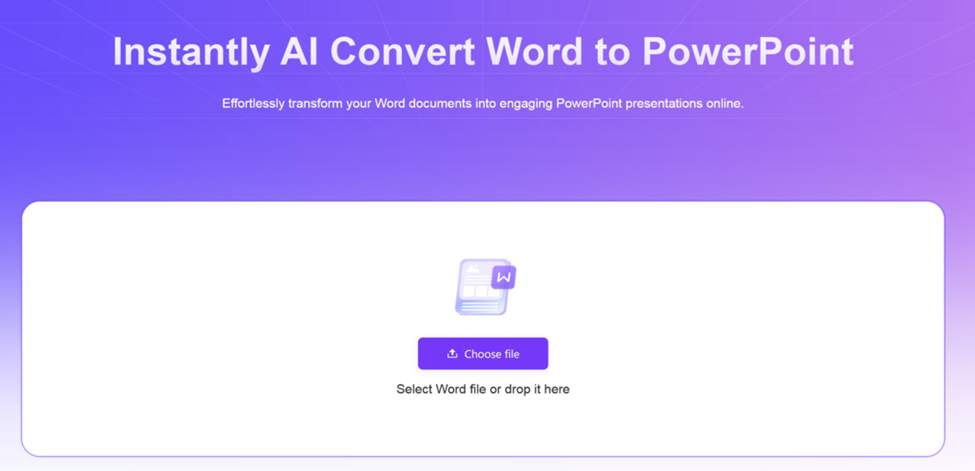
Navigate to the AiPPT Word to PPT converter. The interface is clean and simple. You can either drag and drop your .docx or .doc file directly onto the page or click to select it from your computer.
- Step 3: Let the AI Perform the Conversion
This is the automated step where the intelligence comes in. In the background, the AI is parsing your document, identifying the Heading styles you applied, and intelligently mapping that content onto a series of professionally designed slides. It’s not just copying text; it’s rebuilding your document’s structure in a presentation format.
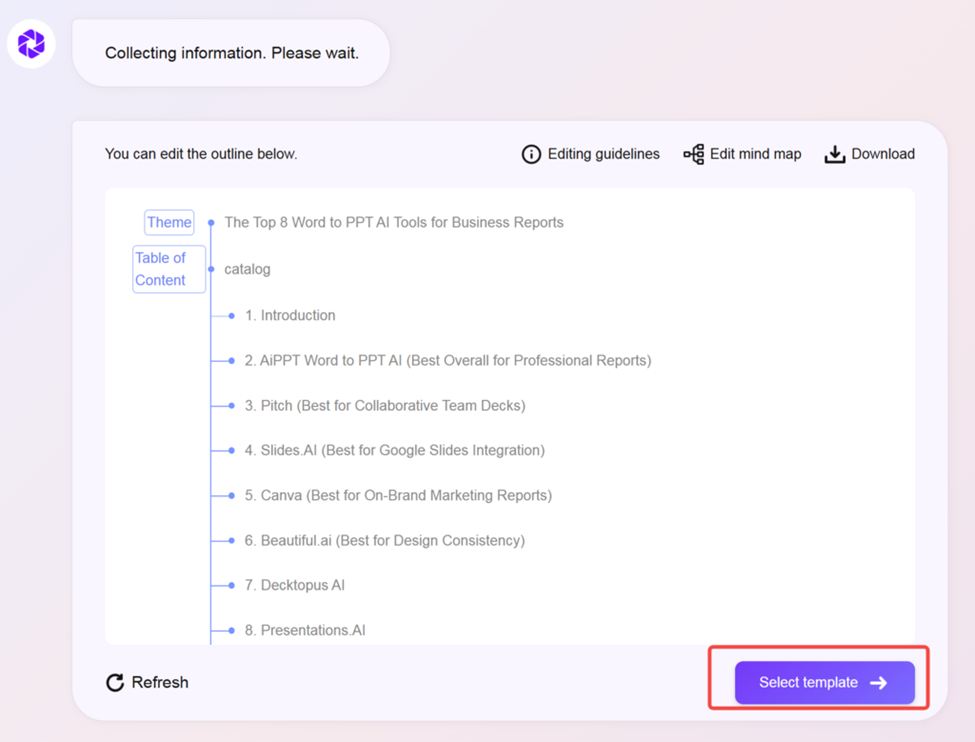
- Step 4: Download Your Flawlessly Converted PowerPoint
The process typically takes only a few seconds. Once it’s complete, a download button will appear. Click it, and you will receive a fully editable .pptx file, ready to be opened in PowerPoint or Google Slides.
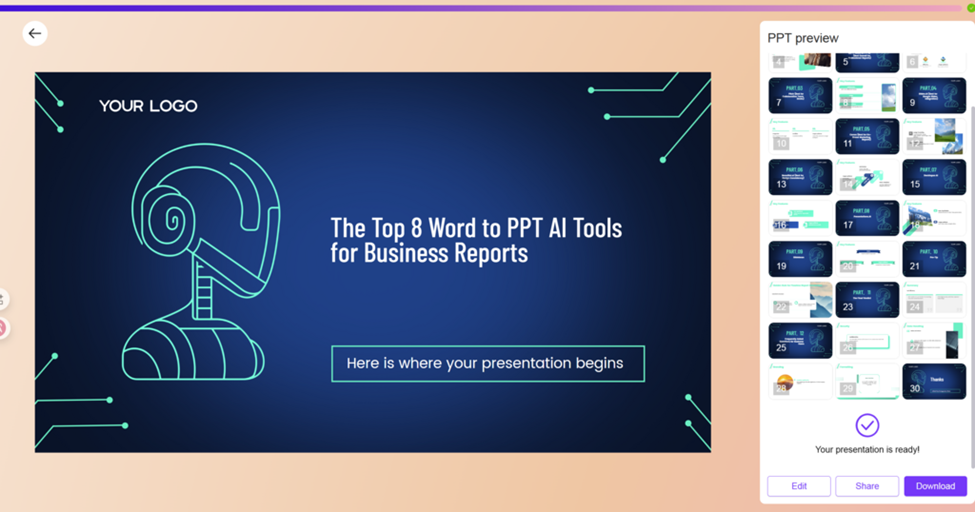
The Final Polish: Taking Your Presentation from 95% to 100%
The AI has done the heavy lifting, but a true pro knows that a quick human touch can make the final product even better.
- Pro-Tip 1: Use the Slide Master. If you need to change the fonts or colors to match your company’s branding, don’t edit each slide individually. In PowerPoint, go to View > Slide Master to make global changes that apply to your entire presentation instantly.
- Pro-Tip 2: Condense Text for Readability. A slide is not a document. Go through your new slides, and if any paragraphs are too long for a presentation, condense them into key bullet points for maximum impact.
- Pro-Tip 3: Add Impactful Visuals. Now that the structure and text are perfect, spend a few minutes adding relevant, high-quality images, icons, or charts to make your message more engaging and memorable.
The Result: Why This Method is Flawless
The perfection of this method comes from the powerful synergy between human preparation and AI execution. By taking a moment to structure your Word document, you provide a perfect blueprint for the AI to follow. The AI then flawlessly executes the conversion and applies a professional design in seconds. This process saves you hours of manual work, perfectly preserves the logical flow of your document, and guarantees a professional look from the start.
Your New Standard for Document Conversion
The days of frustrating, messy conversions are over. The simple, repeatable workflow—Structure, Convert, Polish—is the new standard for professionals and students who value their time and quality. Stop wasting hours with manual copy-pasting and start communicating your ideas more effectively. By following this tutorial, you can convert word to ppt flawlessly and focus your energy on what truly matters: delivering a great presentation.
Frequently Asked Questions
What happens if I don’t use Heading Styles in my Word document?
An intelligent converter will still attempt to create a presentation, but it will have to guess at the structure. This can lead to slides with too much text or an illogical flow. Using styles is the best way to guarantee a great result.
How does the AI decide on the design of the presentation?
Advanced AI tools like AiPPT have a built-in design engine with professional templates. The AI automatically applies a clean, modern design that is appropriate for most professional and academic topics.
Is this process secure for my confidential documents?
Yes. Reputable tools like AiPPT use secure, encrypted (HTTPS) connections and have clear privacy policies that state your files are not stored long-term.
Can I edit the presentation after I download it?
Absolutely. The final output is a standard, fully editable .pptx file. You have complete control to change any text, image, or design element.